

🍲 How to import documents from Google Drive into Airparser with n8n
This guide shows how to automatically import documents from Google Drive into Airparser using n8n.
Once set up, every new file uploaded to a Google Drive folder will be sent to Airparser and parsed automatically using your extraction schema.
What you will need
A Google Drive account
An Airparser account
An n8n instance (cloud or self-hosted)
An existing Airparser inbox with an extraction schema
Step 1: Create a folder in Google Drive
Create a dedicated folder in Google Drive.
This folder will be used to upload documents that should be parsed by Airparser.
Every new file added to this folder will be imported automatically.
Step 2: Create a new workflow in n8n
Open n8n and create a new, empty workflow.
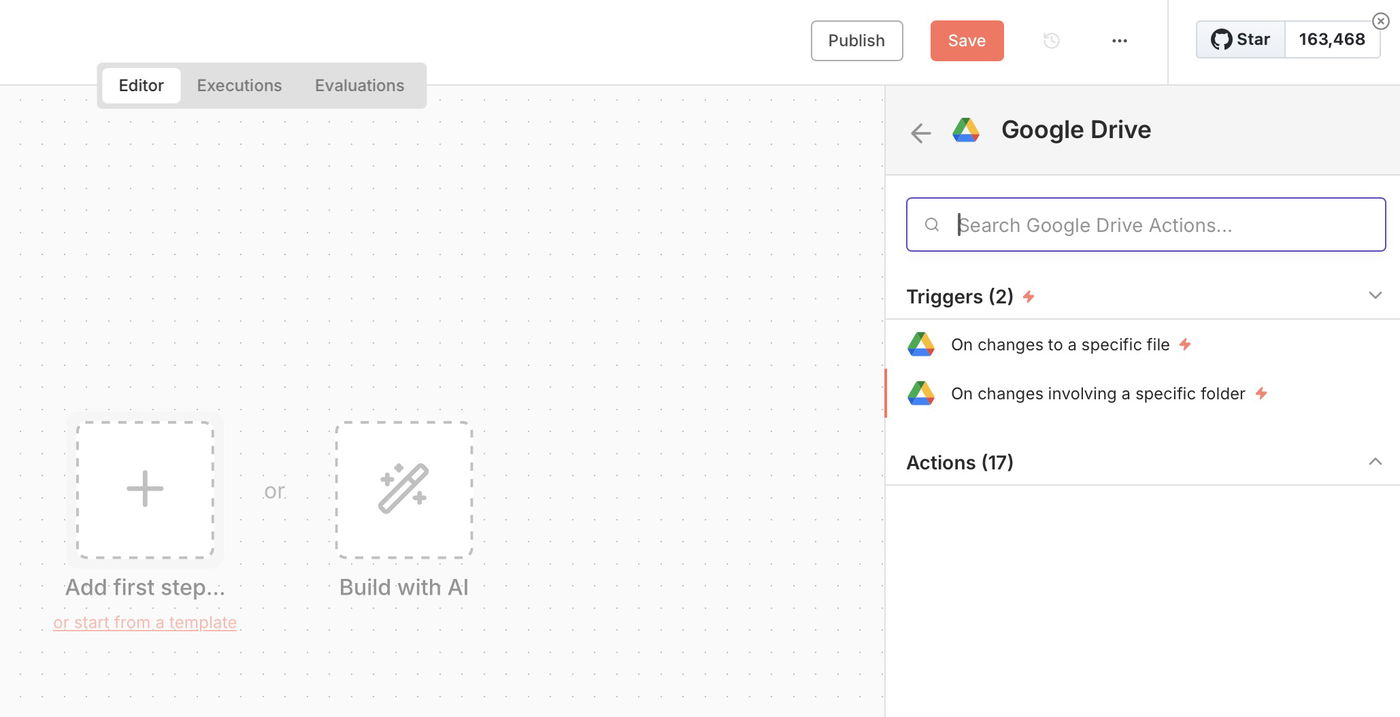
Add Google Drive as the first node. Trigger: On changes involving a specific folder
Step 3: Connect Google Drive to n8n
In the Credentials section, click Create new credential.
Connecting Google Drive requires creating a Google Cloud project and OAuth credentials.
This setup is outside the scope of this article, but it is well documented by n8n.
Follow this guide:
https://docs.n8n.io/integrations/builtin/credentials/google/oauth-single-service/
Once connected:
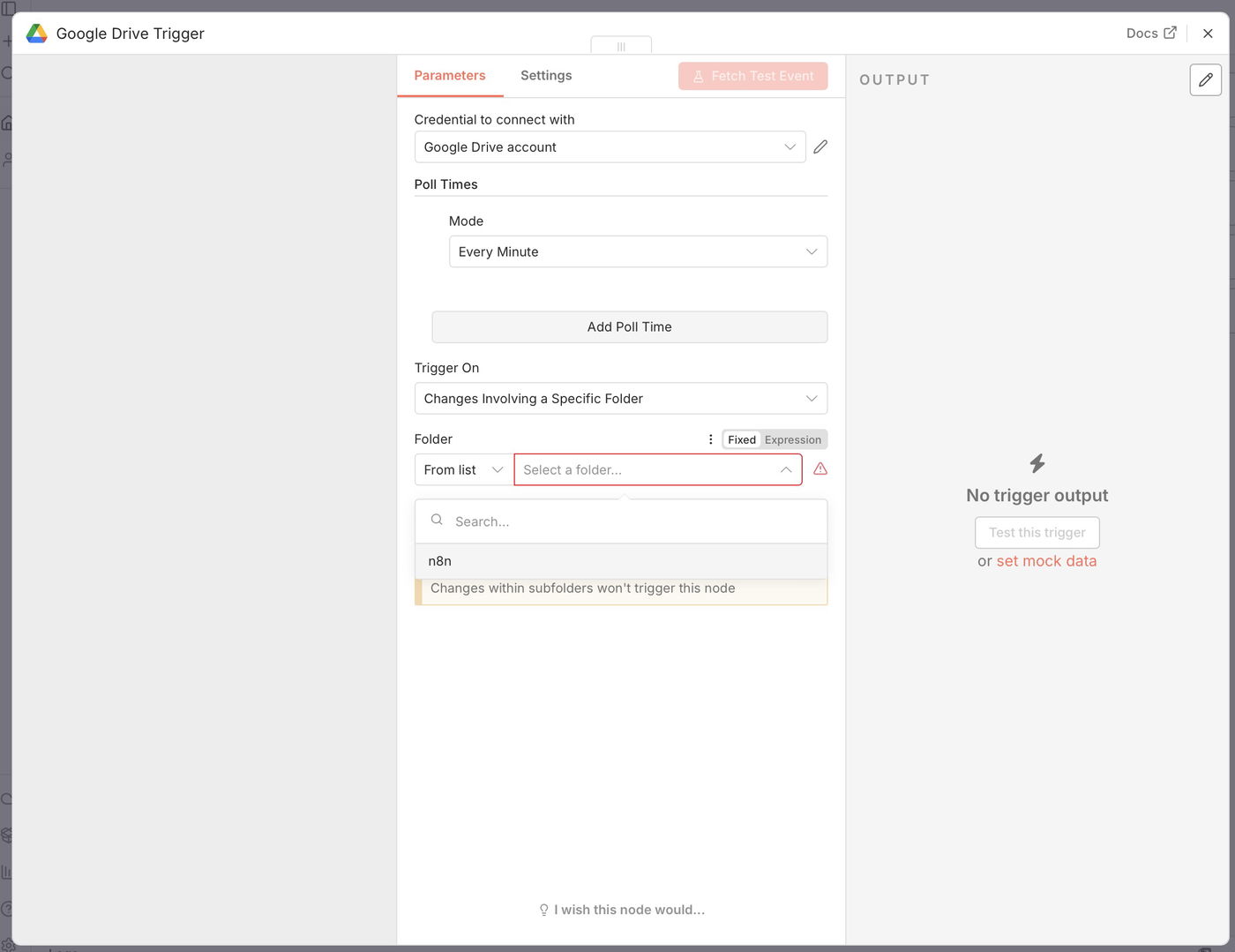
Select the Google Drive folder you created earlier
Save the node
Step 4: Test the Google Drive trigger
Upload a sample file into your Google Drive folder.
In n8n, click Test this trigger (or Fetch test event).
You should see the file metadata appear in the Output panel on the right.
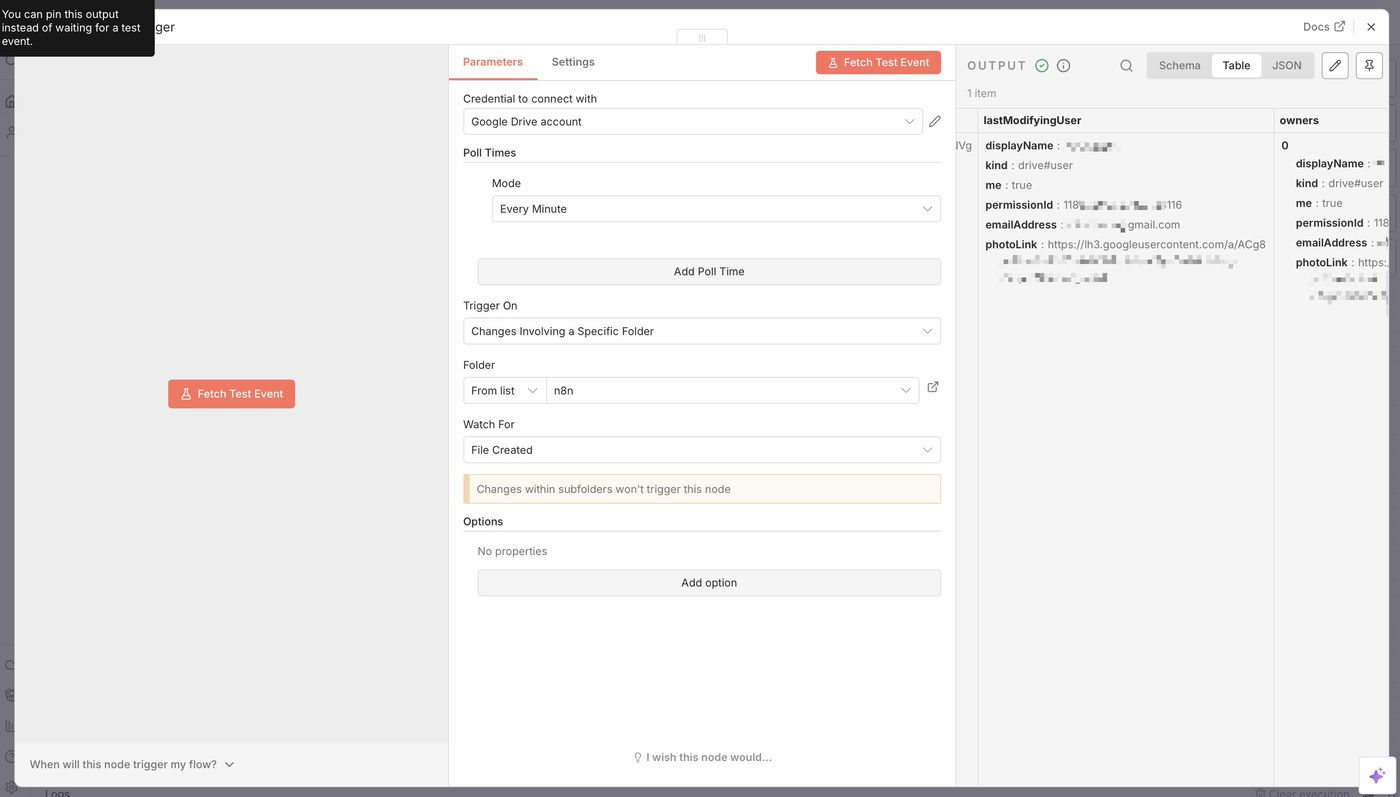
This confirms the trigger is working correctly.
Step 5: Download the file from Google Drive
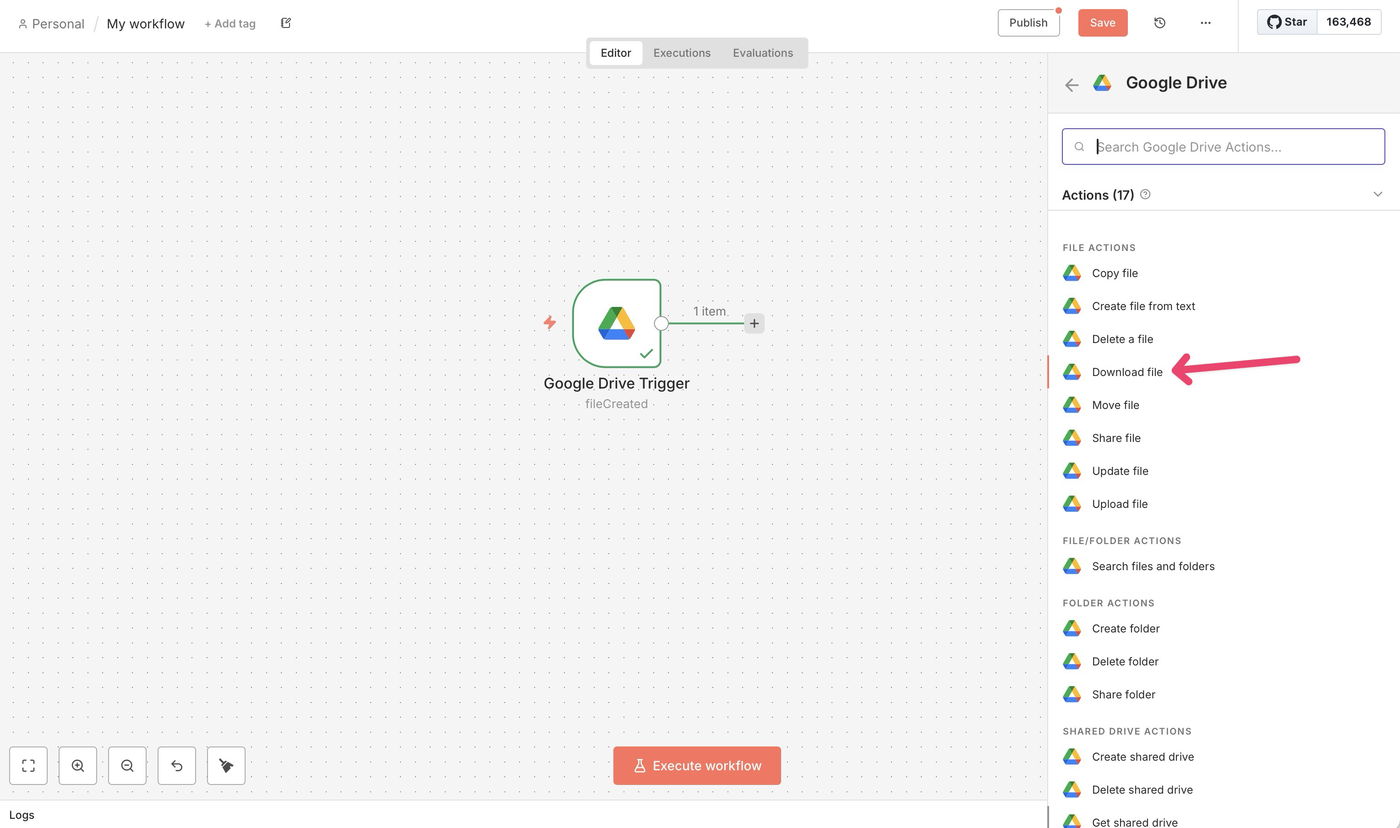
Close the trigger configuration and add a second node:
Google Drive → File actions → Download file
Configure the node:
Resource: File
Operation: Download
File:
Select By ID
Use the expression:
{{ $json.id }}
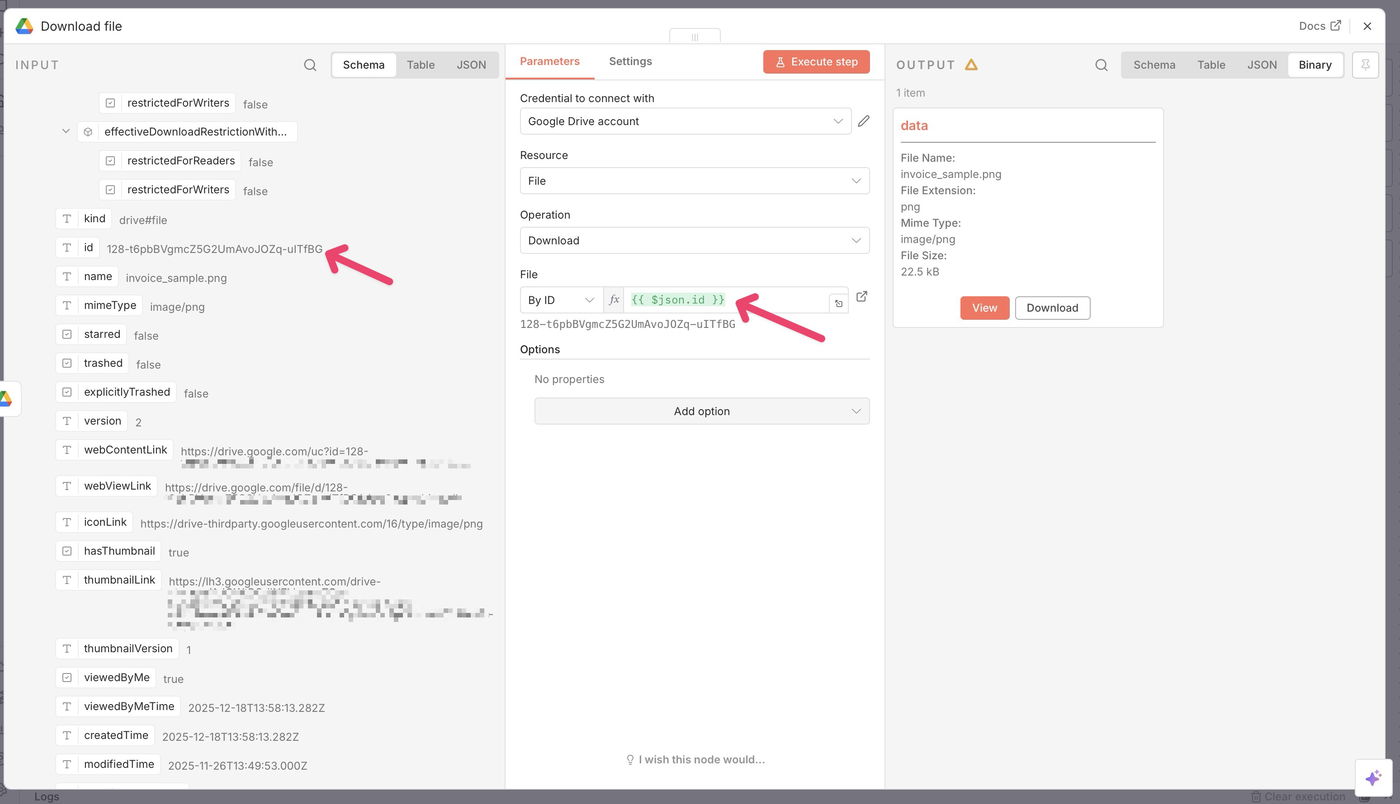
This dynamically downloads the file that triggered the workflow.
Step 6: Install the Airparser node
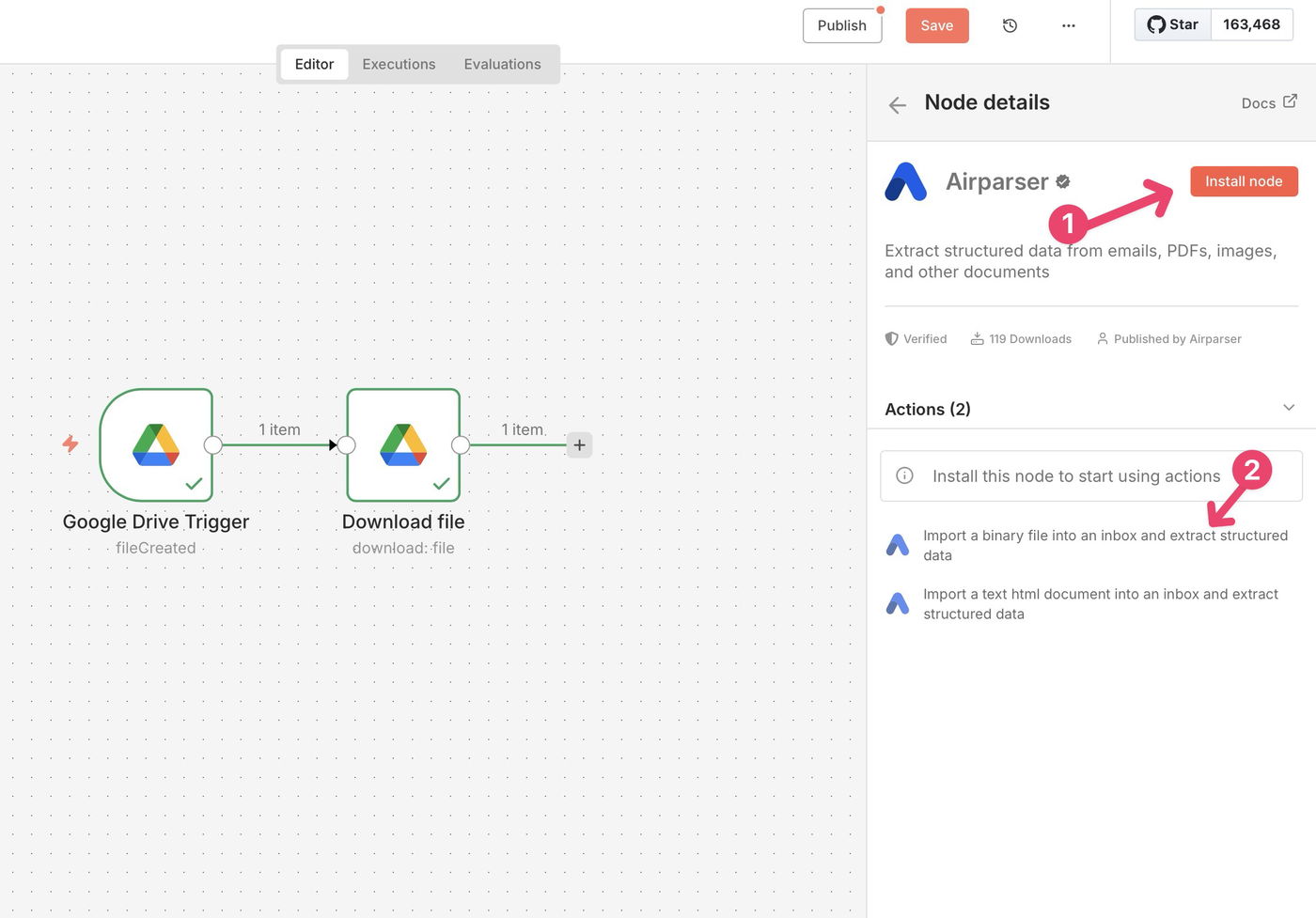
Add a new node and search for Airparser.
Click Install node, then select the action: Import a binary file into an inbox and extract structured data
Step 7: Connect your Airparser account
In the Airparser node:
Click Create new credential
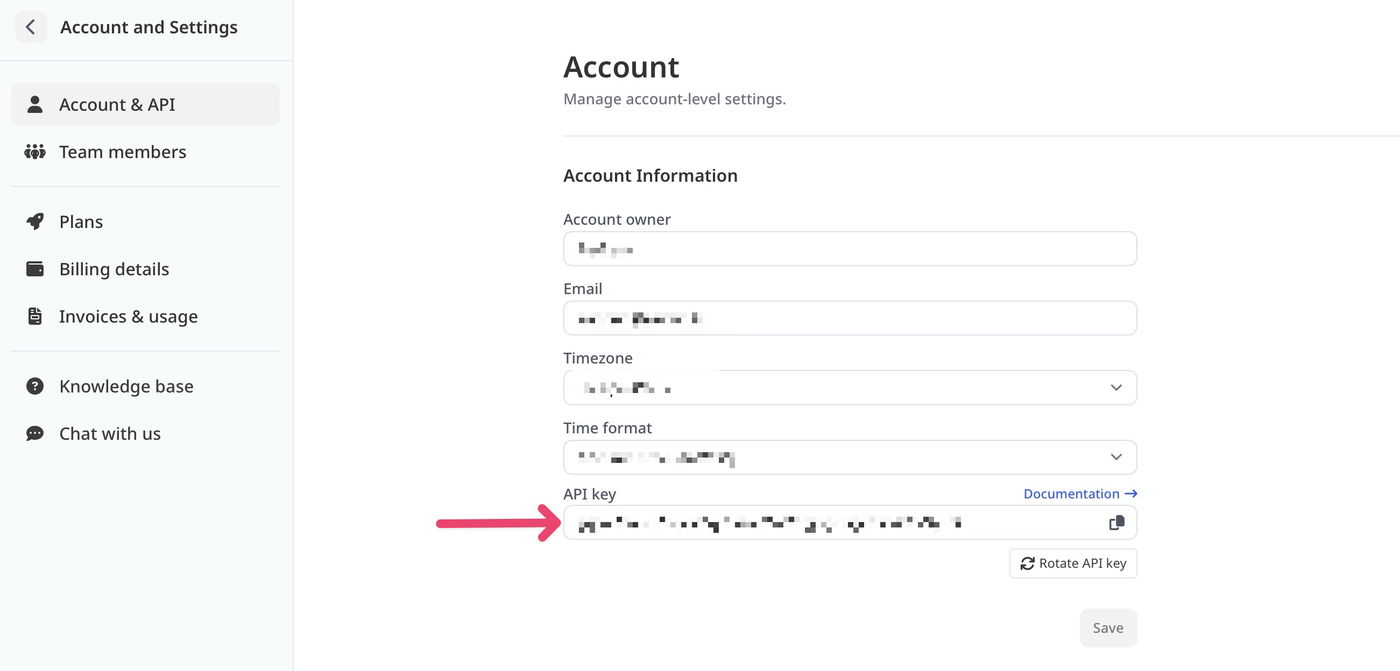
Open your Airparser account settings:
https://app.airparser.com/accountCopy your API key
Paste it into n8n and save
Step 8: Configure the Airparser import
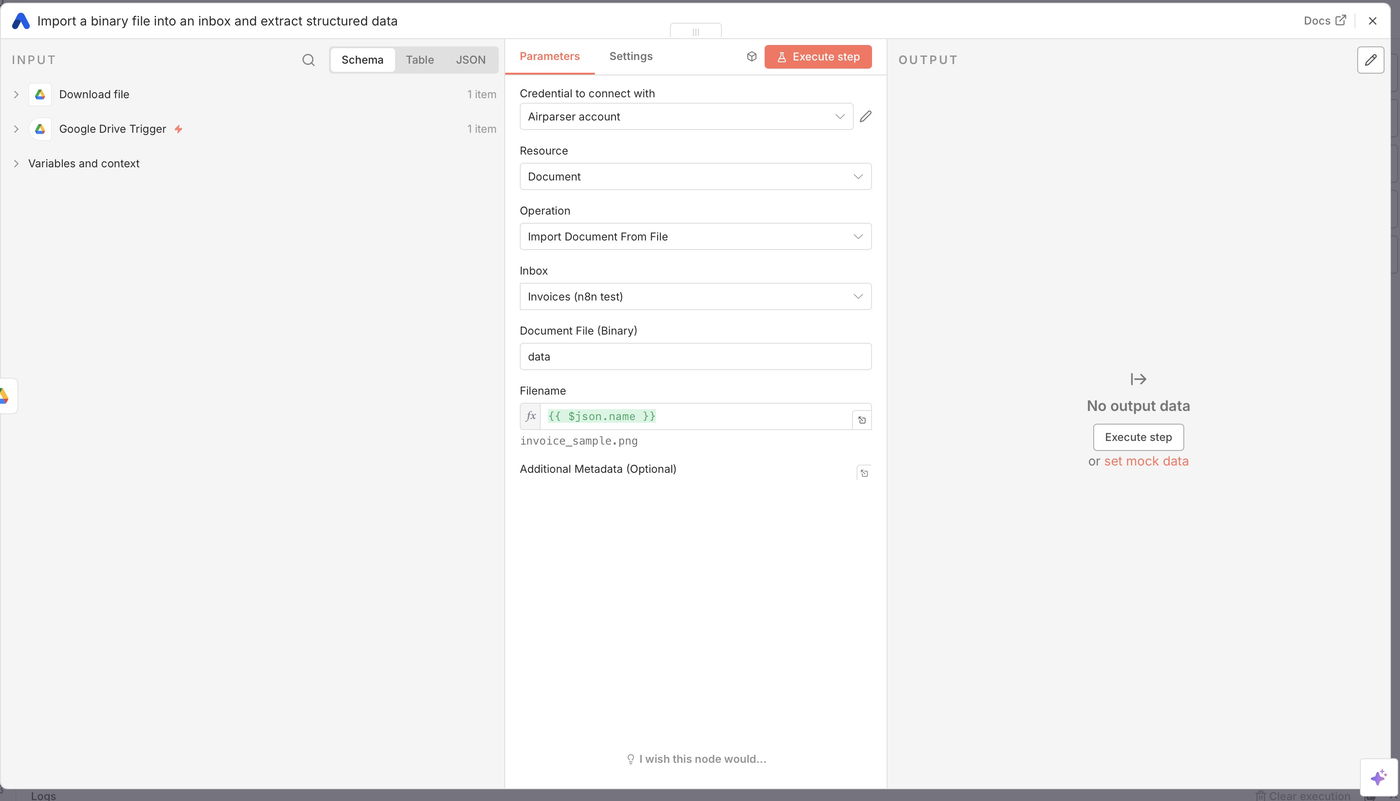
Configure the Airparser node as follows:
Inbox: Select the inbox where documents should be imported
Document file (Binary):
dataFilename:
{{ $json.name }}
Optional:
You can pass additional metadata as JSON.
This data will be available in the parsed document results.
Step 9: Run and publish the workflow
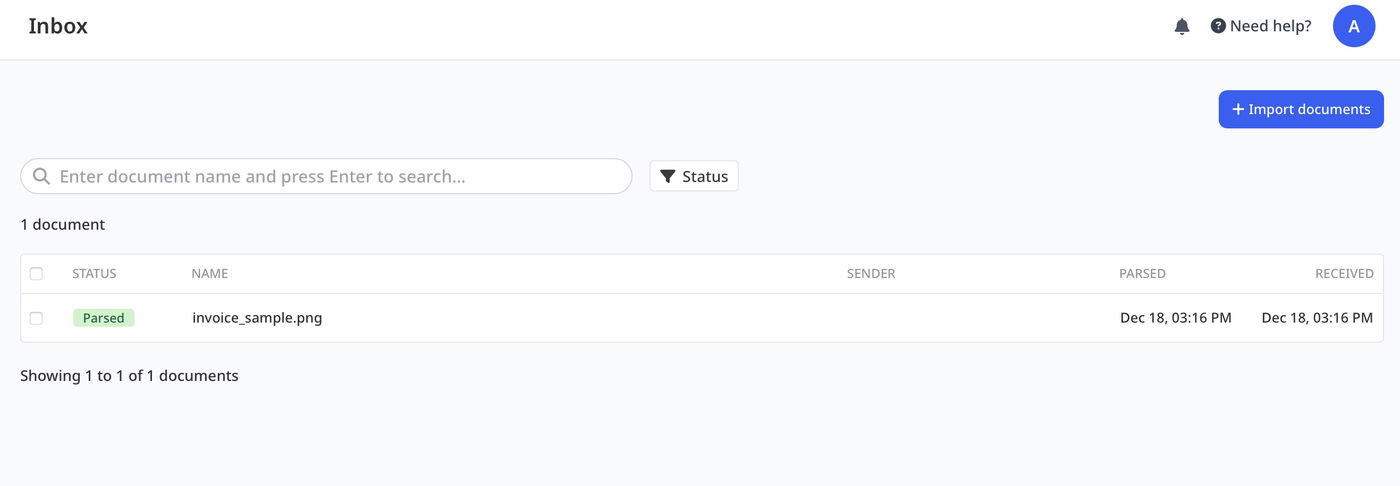
Click Execute step.
You should see the document appear in your Airparser inbox and get parsed automatically.
Finally:
Close the node settings
Click Publish workflow
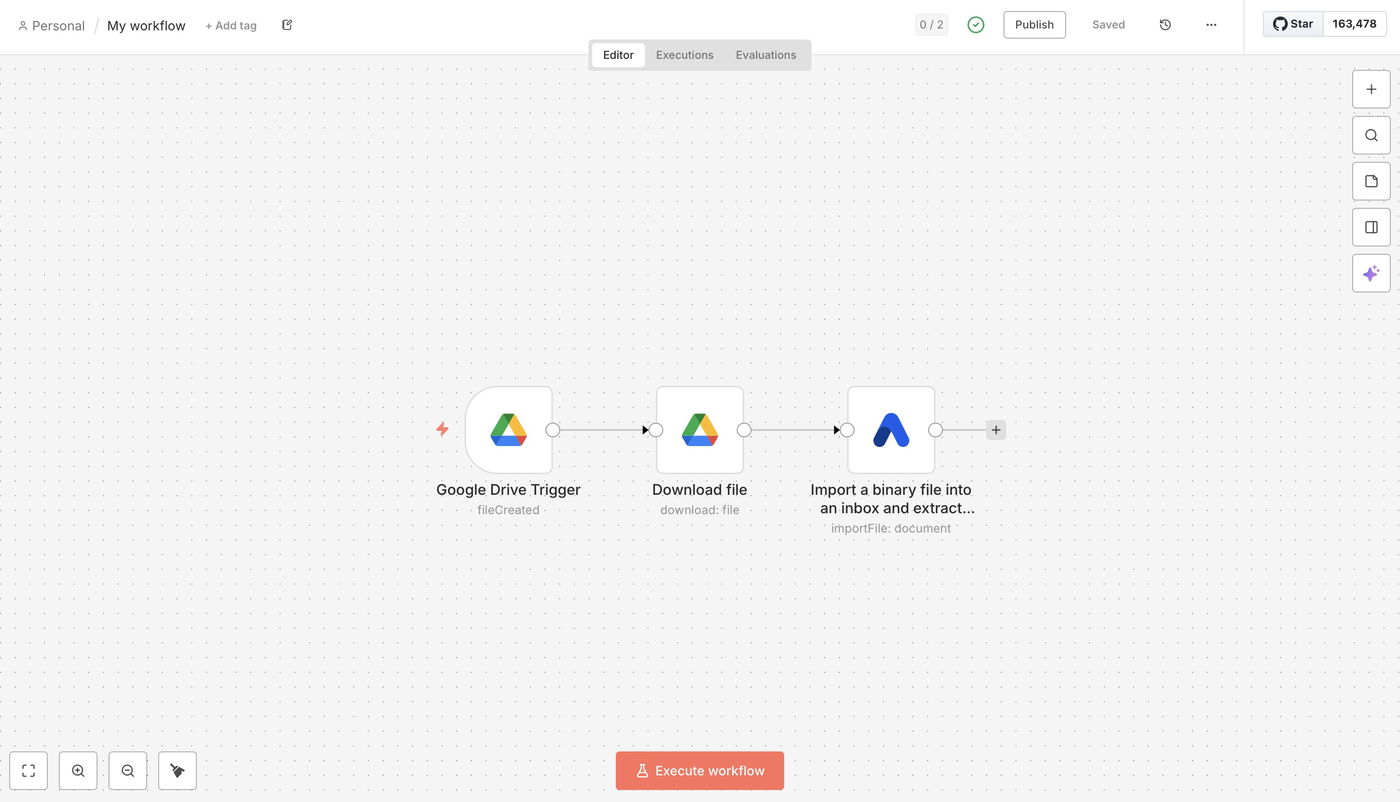
Done 🎉 Your automation is now live. Every time you upload a document to the selected Google Drive folder:
The file is downloaded by n8n
Imported into Airparser
Parsed using your defined extraction schema