

🧩 How to connect Airparser MCP to ChatGPT
You can connect Airparser MCP to ChatGPT so ChatGPT can work directly with your Airparser account.
Once connected, ChatGPT can use Airparser tools to inspect inboxes, list documents, retrieve parsed JSON, update extraction schemas, and help with post-processing workflows.
Important: ChatGPT can make mistakes, so always review important outputs before making production changes.
Before you start
Make sure you have:
a ChatGPT account with access to custom MCP apps
an Airparser account
your Airparser API key
You can find your Airparser API key here:
https://app.airparser.com/account
Step 1. Enable developer mode in ChatGPT
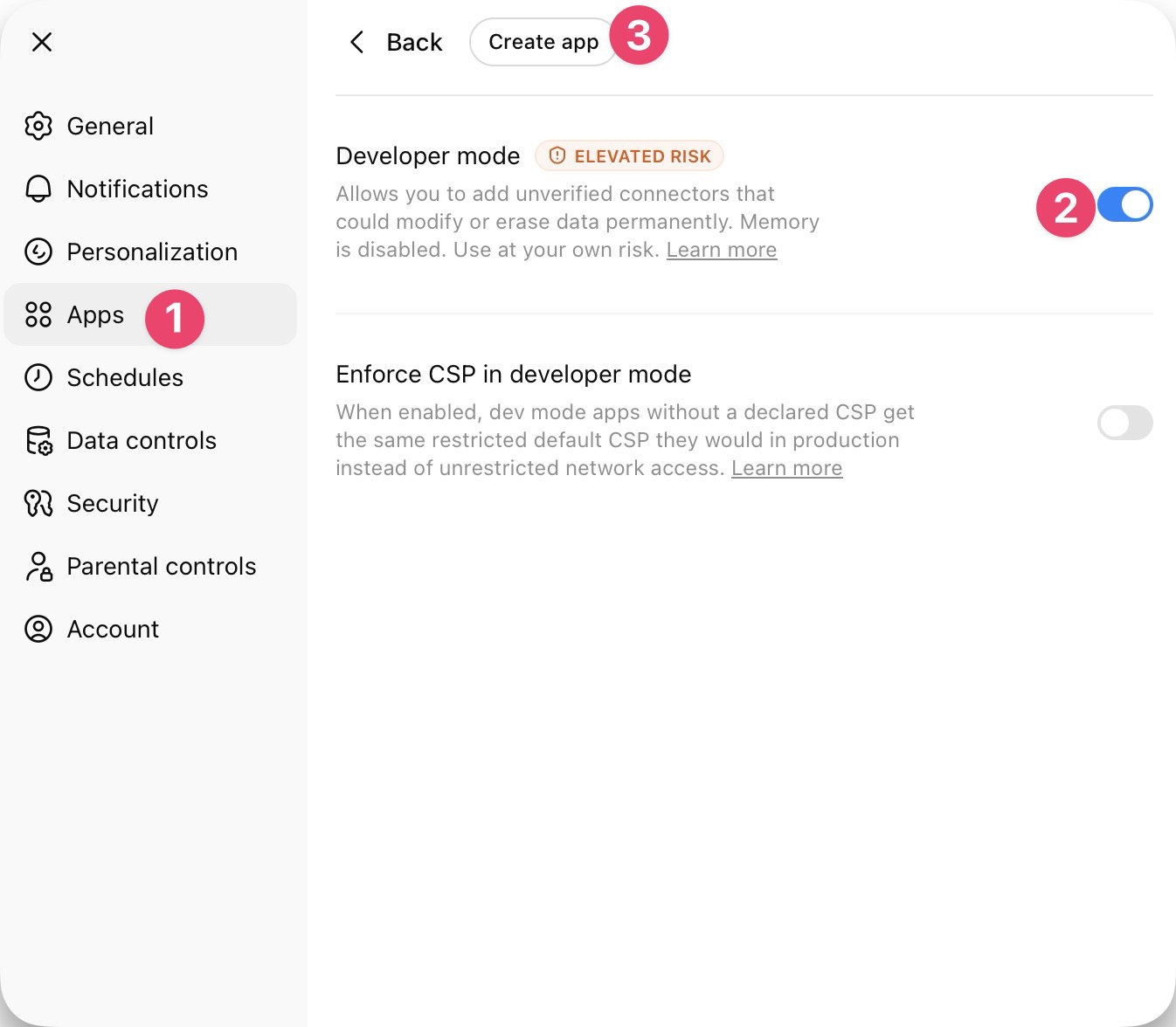
In ChatGPT, open Settings, then go to Apps.
Turn on Developer mode, then click Create app.
Note: ChatGPT labels developer mode as elevated risk because custom MCP servers are not reviewed by OpenAI.
Step 2. Add the Airparser MCP server
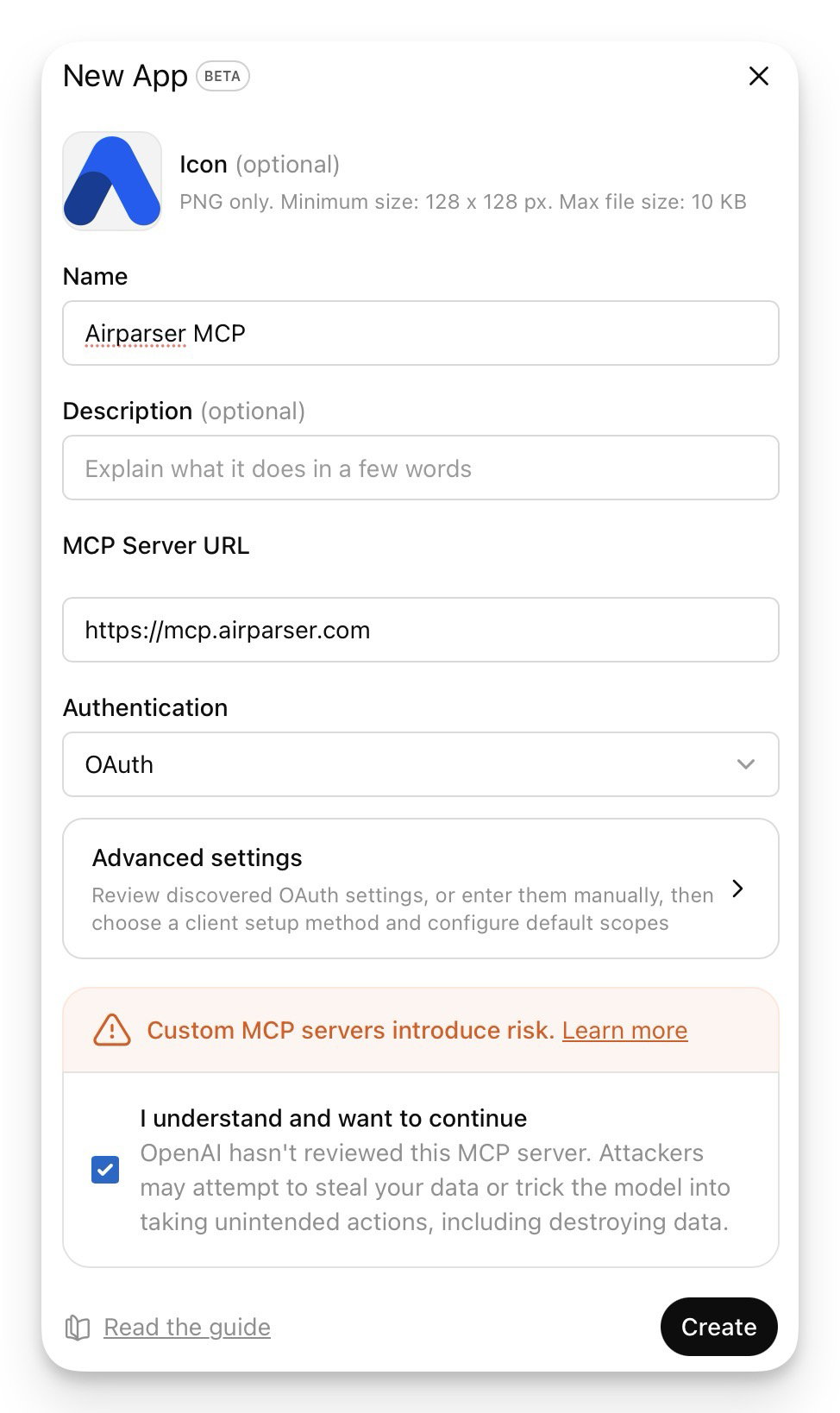
In the new app form, use these settings:
Name: Airparser MCP
MCP Server URL:
https://mcp.airparser.comAuthentication: OAuth
Then confirm the custom MCP warning checkbox and click Create.
Step 3. Authorize with your Airparser API key
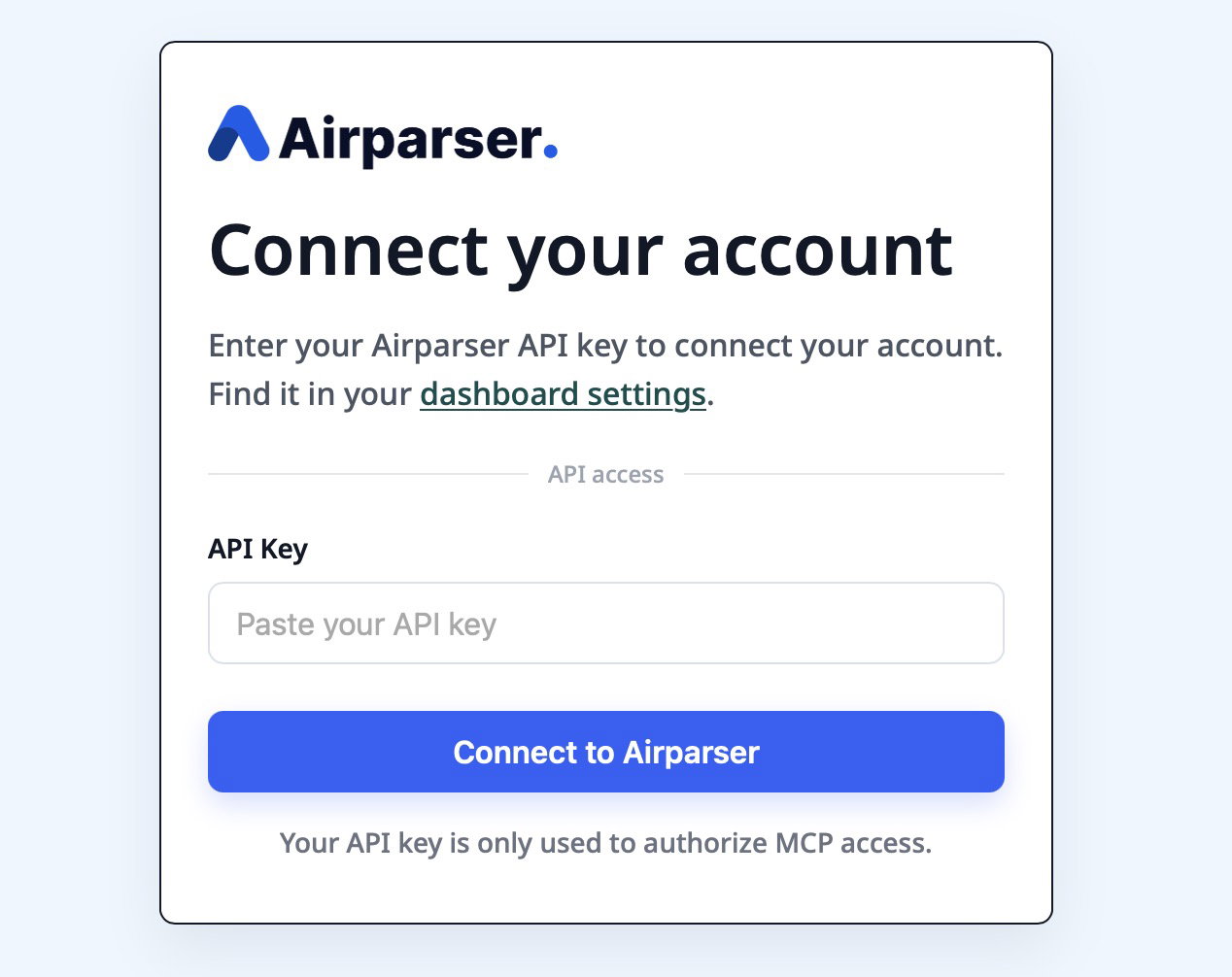
ChatGPT will open the Airparser authorization window.
Paste your Airparser API key and click Connect to Airparser.
If you need to copy your key, open your Airparser account page here:
https://app.airparser.com/account
Step 4. Confirm the connection
After authorization, Airparser MCP should appear in Settings > Apps.
If the connection succeeds, ChatGPT will be able to discover available Airparser actions.
What you can do after connecting
Once Airparser MCP is connected, you can ask ChatGPT to help with tasks like:
import new documents for parsing
list your Airparser inboxes
show the extraction schema for an inbox
list documents inside an inbox
retrieve parsed JSON for a document
generate or update an extraction schema
test or update post-processing Python code
Troubleshooting
If ChatGPT does not show Airparser actions right away, try these steps:
open the Airparser app entry in Settings > Apps and click Refresh
disconnect and reconnect the app
make sure you entered the correct Airparser API key
make sure the MCP server URL is exactly
https://mcp.airparser.com
If you still have trouble connecting, please contact Airparser support.