

📨 Import Existing Emails from Your Mailbox
Airparser can import existing (historical) emails directly from your mailbox, so you can backfill past invoices, receipts, and other documents without forwarding them one by one.
This feature imports your past emails. For new emails going forward, set up a forwarding rule in your mailbox that forwards them to your <inbox>@in.airparser.com address.
Where to find it
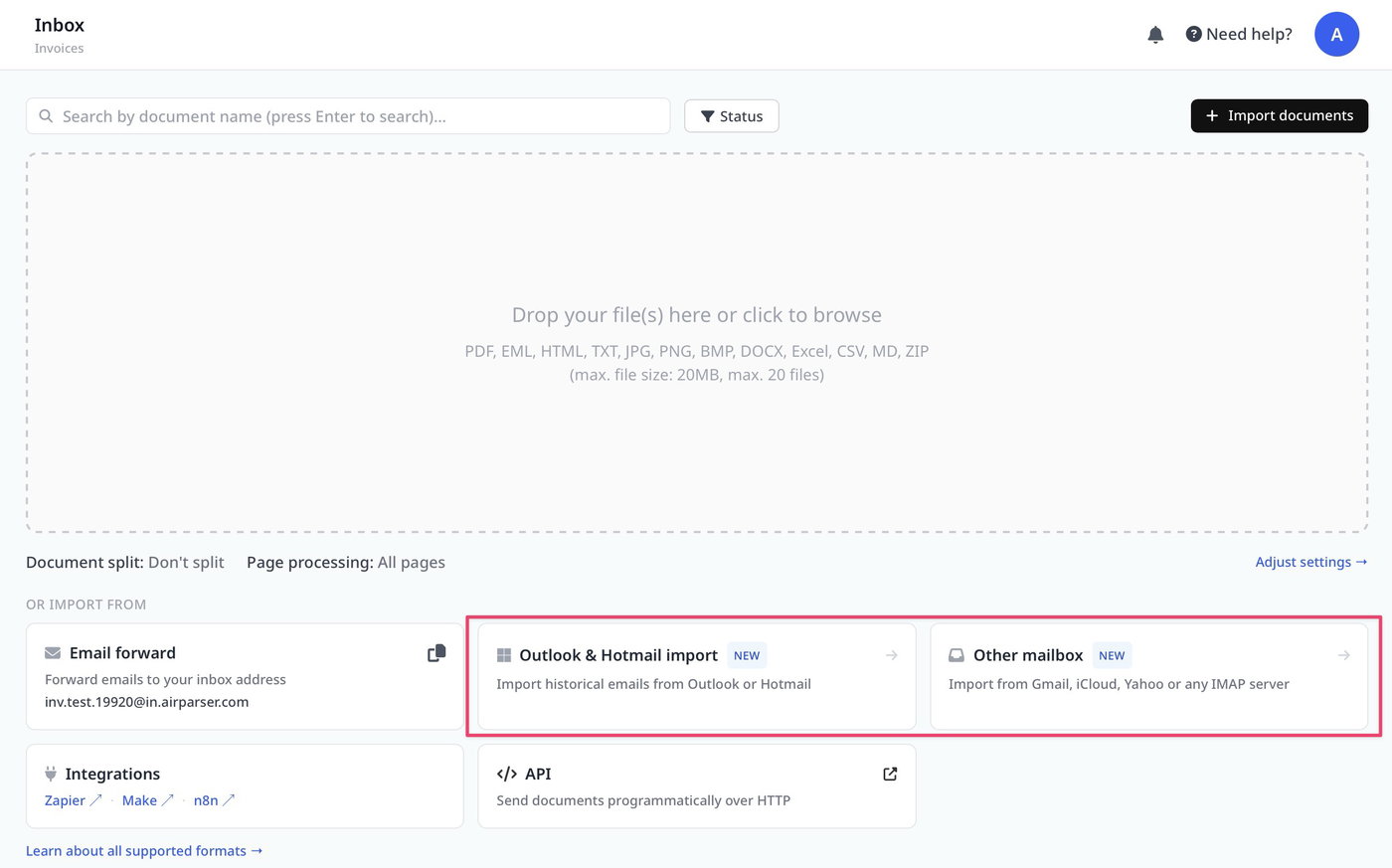
Open your inbox and look under Other ways to import (click Import documents first if the panel is collapsed). You'll see two mailbox options:
Outlook & Hotmail import — one-click connect.
Other mailbox — iCloud, Yahoo, Gmail, or any IMAP server.
Option A: Outlook & Hotmail (one-click)
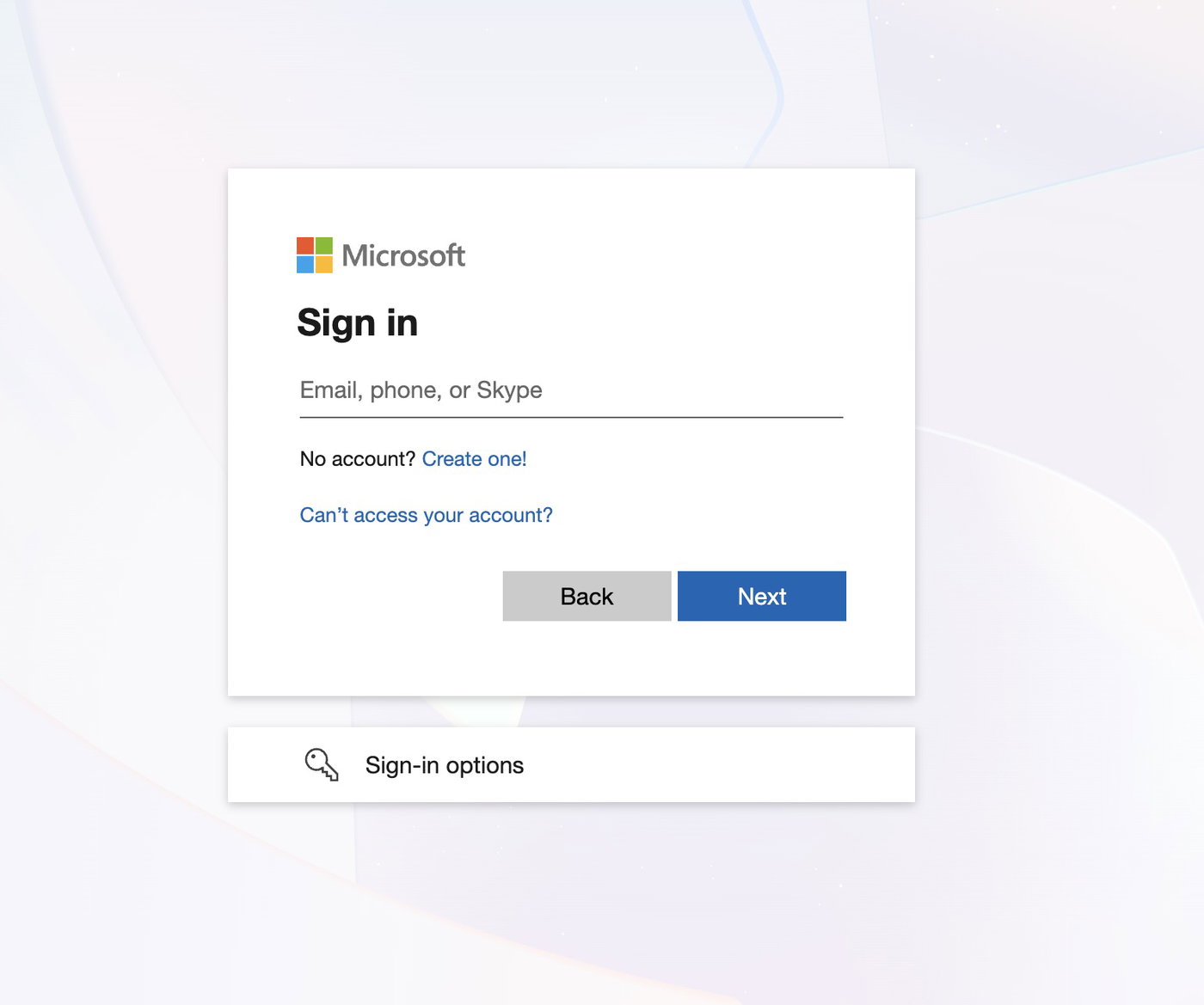
Click the Outlook & Hotmail import card.
Sign in with your Microsoft account and approve read-only access.
You'll return to Airparser with the import window open.
Option B: Other mailbox (Gmail, iCloud, Yahoo, or any IMAP)
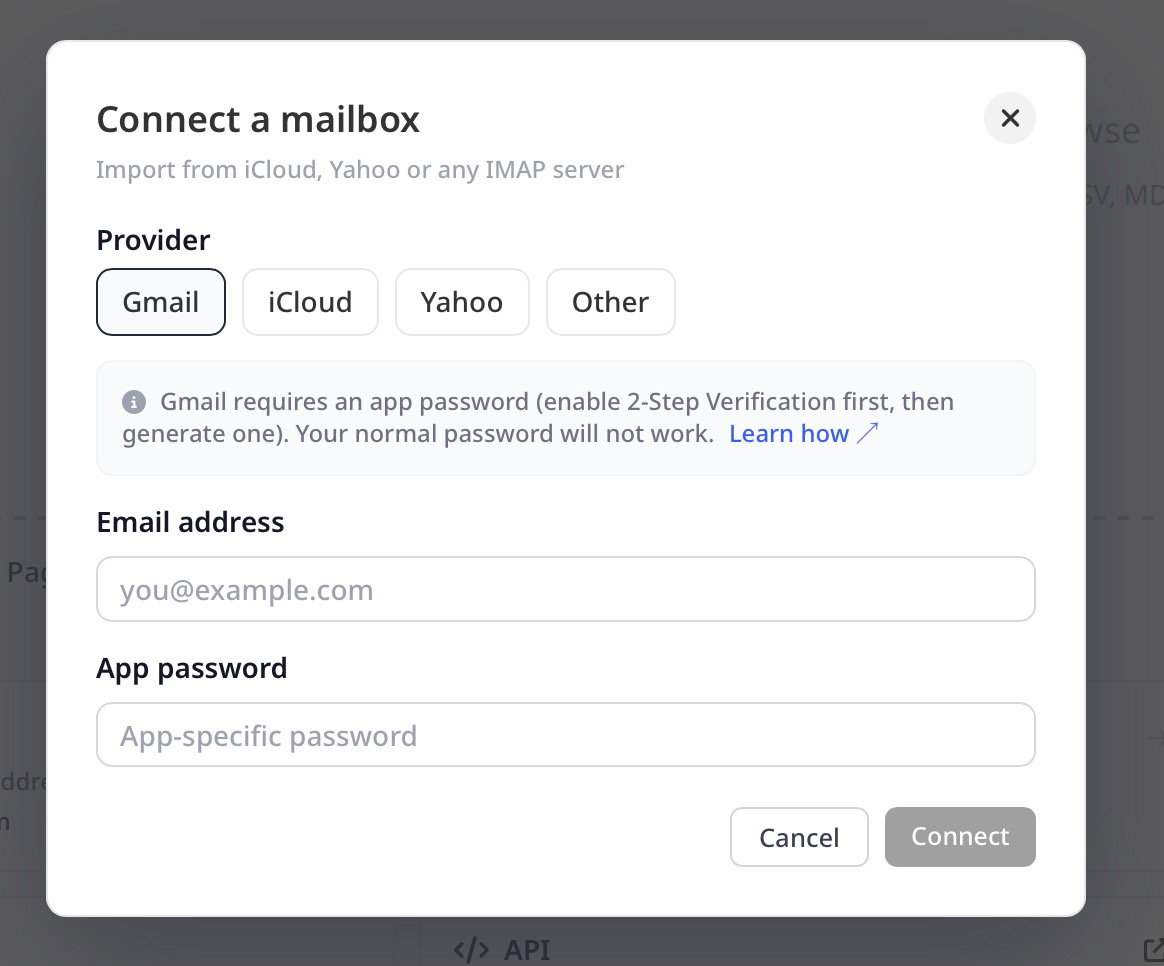
Click the Other mailbox card.
Choose your provider: Gmail, iCloud, Yahoo, or Other (enter the IMAP host and port manually).
Enter your email address and an app password (see note below), then click Connect.
These providers require an app-specific password — your normal account password will not work. Generate one here: iCloud, Yahoo, Gmail. Gmail also requires 2-Step Verification to be enabled first.
Selecting and importing emails
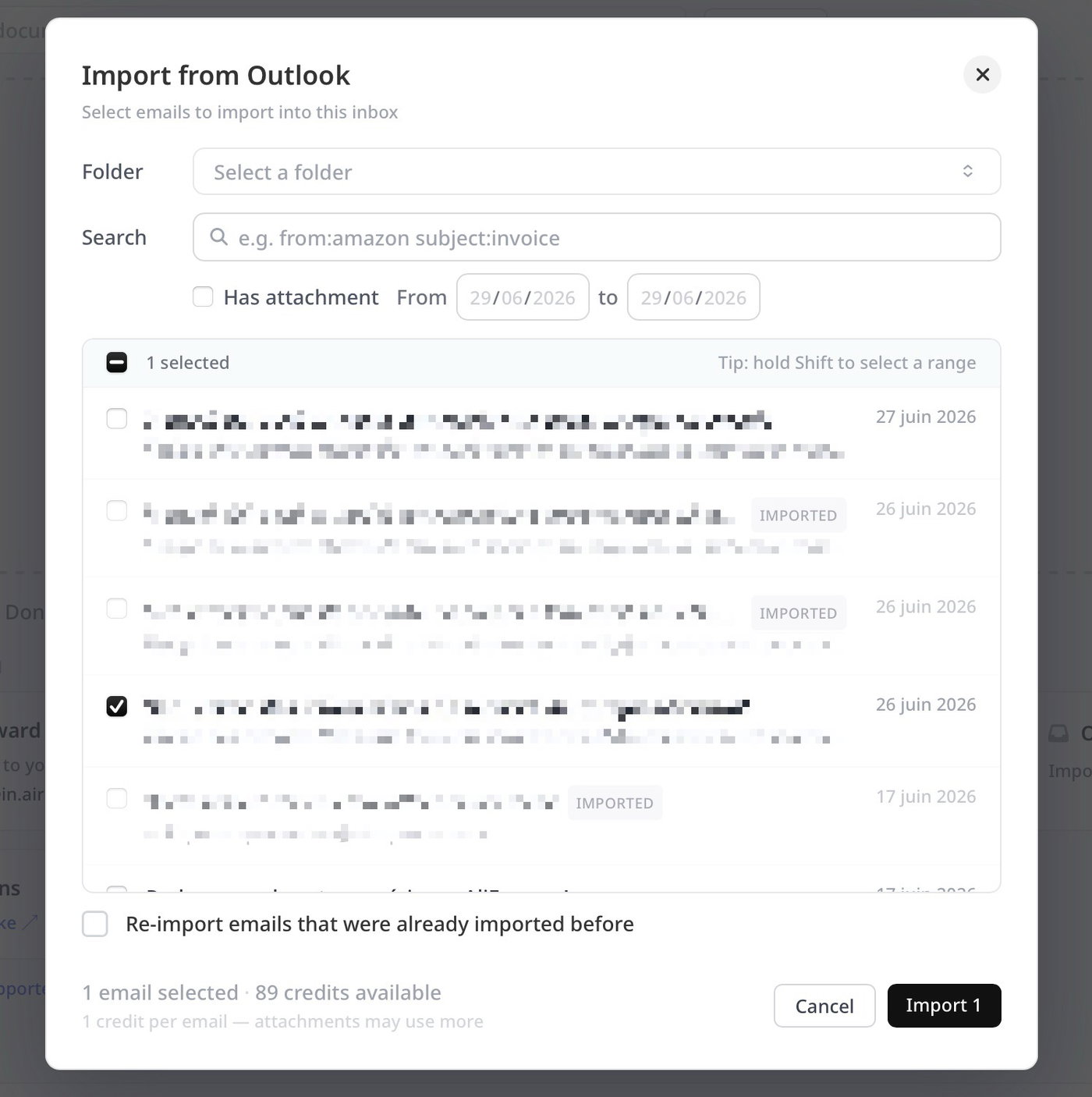
Once connected, the import window lets you choose exactly which emails to import:
Folder — pick which mailbox folder/label to import from (e.g. Inbox).
Search — find emails by sender or subject.
Filters — narrow by date range (and, for Outlook, by whether the email has an attachment).
Select — tick individual emails, hold Shift to select a range, or use Select all.
Emails you've already imported are marked with an Imported badge and skipped by default. To bring them in again, tick "Re-import emails that were already imported before".
Click Import to bring the selected emails into your inbox for parsing.
Credits
Each imported email uses at least 1 credit. Emails with attachments may use more, since each attachment is parsed as a separate document. To avoid surprises, the number of emails you can select at once is capped at your available credits.
Managing the connection
To disconnect a mailbox or connect a different one, go to Inbox Settings → Email sync.
Need a hand? Reach us via live chat or at support@airparser.com.