

🧩 How to connect Airparser MCP to Cursor
Connect Airparser to Cursor so the agent can work with your Airparser account: upload documents, read the parsed data, and create or update extraction schemas.
Before you start
Cursor, installed and signed in.
An Airparser account.
Your Airparser email and password. If you signed up with Google, set a password first. You can also use your API key from the Account page.
Connect Airparser
Create
.cursor/mcp.jsonin your project, or~/.cursor/mcp.jsonto use Airparser in every project.Add the Airparser server:
{ "mcpServers": { "airparser": { "url": "https://mcp.airparser.com" } }}Open Customize in the Cursor sidebar and select MCPs. Under Needs Attention, airparser shows Needs authentication. Click Authenticate.
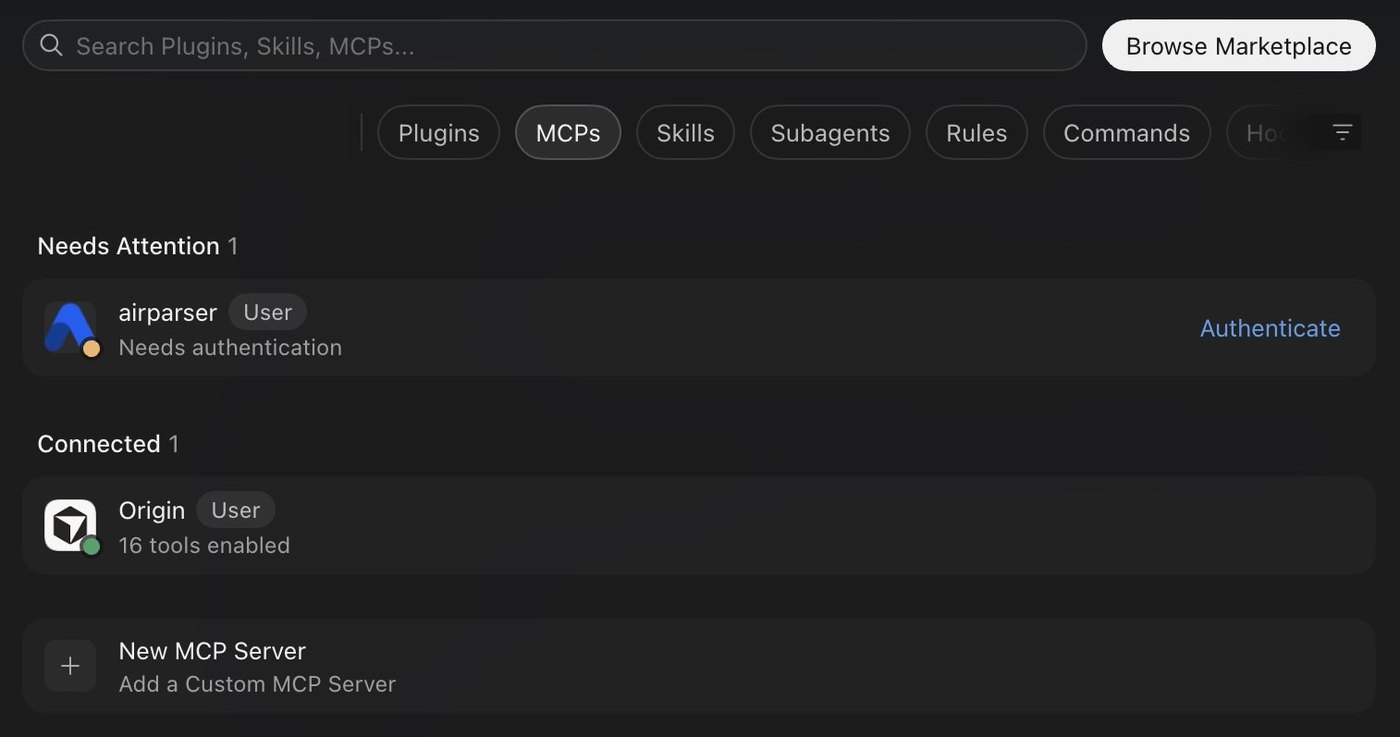
In the Airparser window that opens in your browser, enter your email and password (or paste your API key) and click Connect to Airparser.
Back in Cursor, airparser is listed under Connected with 18 tools enabled.
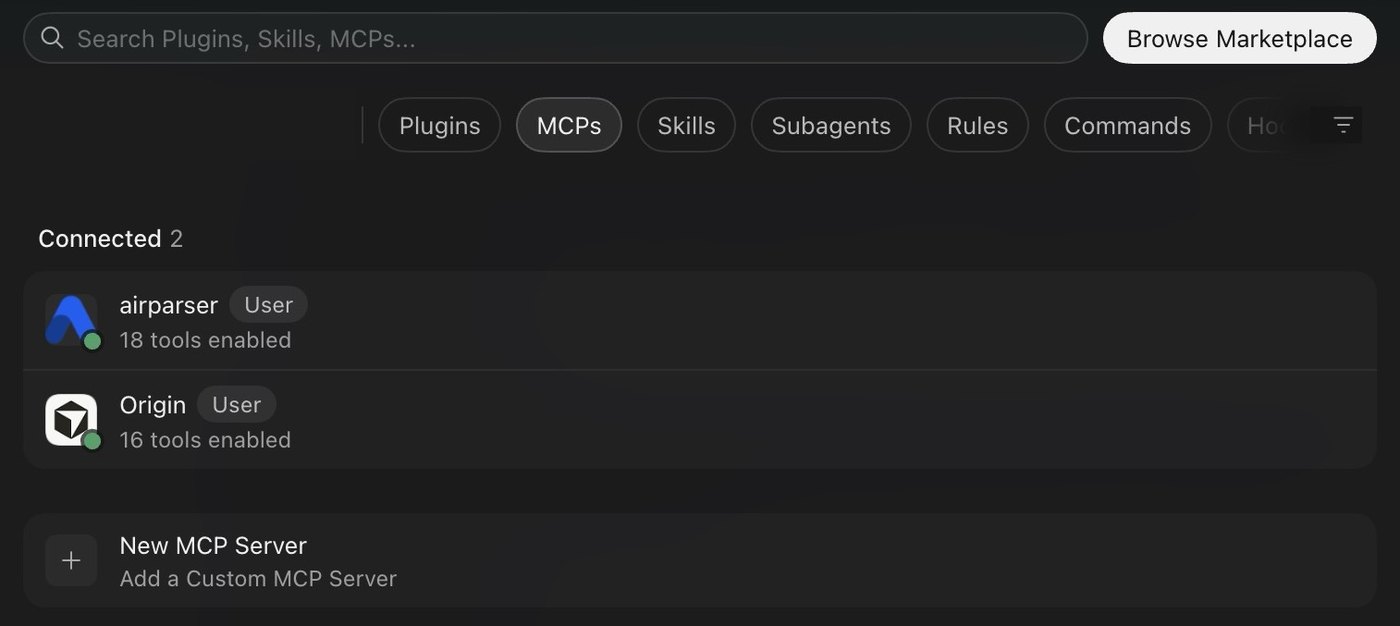
Check the connection
Ask the agent:
Show me my Airparser inboxes.
Listing inboxes does not parse anything.
What you can ask
"Create an Airparser inbox called 'Test invoices', upload invoice.pdf from this folder and show me the extracted data."
"Show the extraction schema for my 'Supplier invoices' inbox."
"Add a field for the purchase order number to that schema."
Parsing uses credits from your plan. Inboxes created by an assistant use the Vision engine unless you ask for the text engine.
Control what the agent can do
Cursor asks for approval before running MCP tools by default. Keep approval on for tools that change data: replacing an extraction schema or saved post-processing code overwrites what was saved.
Use an API key instead of signing in
Set your API key in an environment variable (for example AIRPARSER_API_KEY) in your shell profile or system environment, restart Cursor, and use:
{ "mcpServers": { "airparser": { "url": "https://mcp.airparser.com", "headers": { "x-api-key": "${env:AIRPARSER_API_KEY}" } } }}Good to know
With sign-in, access lasts 90 days. After that, sign in again.
Changing or resetting your Airparser password ends the access of every connected assistant.
Very large files may not fit in one request. Upload them in the Airparser app or send them to the inbox email address.
If a parse takes more than 15 seconds, the agent gets the document ID and fetches the result a moment later. There is no need to upload the file again.
Troubleshooting
No Authenticate button: check that the URL is exactly
https://mcp.airparser.comand that airparser appears in Customize → MCPs.Errors: open the Output panel (Cmd+Shift+U on a Mac) and choose MCP Logs.
Empty inbox list: check which Airparser account you signed in with.